

#NiftyKeyboardShortcuts: Duplicate (Ctrl + D)
- Mar 5, 2018
- 2 min read
I overheard a colleague at work today who was singing the virtues of the duplicate function, so Ctrl + D is well worth covering in this post.
The discussion in the office was actually in the context of PowerPoint, where a selected slide is duplicated with the usage of the Ctrl + D shortcut – along with the features such as animation and transition.
In an Excel workbook, Ctrl + D produces various kinds of duplication, depending on the active selection and the contents of the cells.
For example, if the active cell is beneath a constant value or text entry, Ctrl + D simply reproduces that constant. Note that this will only happen with a one-cell selection; if you select a range of blank cells, Ctrl + D does nothing. If your selection includes the constant cell and extends over a range, then all the cells will be filled with the duplicate entry.
Ctrl + D also works with features like data validation: the same settings are applied to the cell(s) beneath the cell being duplicated:

It also gets interesting when you have a function in the cell. Like autofilling via a click-and-drag or double-click, Ctrl + D will produce different results depending on whether the function contains absolute, mixed or relative references.
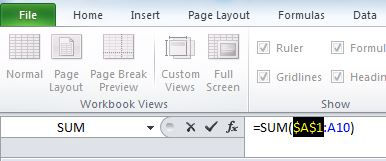
For instance, if D1 contains =SUM(A1:A10) and you use Ctrl + D in D2, D2 will contain =SUM(A2:A11). If the first reference had been locked, $A$1, then the same operation would end up with D2 containing =SUM($A$1:A11).

Remember that you can cycle through absolute, mixed and relative references using F4 when typing in the formula bar:
I tend to think of Ctrl + D standing for fill down, as the duplication is only copying downwards from cell at the top of the selection. Ctrl + R does the equivalent fill rightwards. And don’t forget that Ctrl + Enter will fill an array of cells in both directions, again basing the resultant entries on whether the top-left cell contains references.
Unintuitive though it may be, there is no similarly succinct shortcut for filling left or up, perhaps because these are rarer operations. Following the accelerator keys that show after pressing Alt provide the route to filling up or left, Alt + H + FI + U and Al + H + FI + L respectively. There are actually a couple of legacy shortcuts here, Alt + E + I + U and Alt + E + I + L…but if you’re still reading, you’re as much of a geek as me and have probably already Googled it like I had to.


Comments