

#NiftyKeyboardShortcuts: Intro
- Jun 26, 2017
- 2 min read

They say to write about what you know.
The turbo boost to my interest in shortcuts came on the day in the office when my mouse and one screen froze rigid.
Logging the fault with IT took on that ambience of being totally necessary and immediately futile: the kind of priority that struggles towards mid-table if it ever sees the light of day. Meantime, deadlines taunted and work sat tantalisingly out of reach on computer all but dead in the water.
Or was it? Thankfully I already had a few basics in my shortcut knowledge (see below) and these gave me an emergency tank to keep things running. By 5.30pm I had done an entire day's work without a mouse. Knackered? Totally. But not behind.
It illustrates the principle of everything in moderation. I doubt that few people's best work is done exclusively sans mouse, unless you're Alan Turing, circa 1942. But to play the (computer) keyboard is as impressive as a Billy Joel or a Beethoven: not only does it make you more efficient, it shows that you are as well.
That's not merely a cosmetic massaging of one's own ego. If you can demonstrate an ability to make the keyboard sing, others will have more confidence in your ability and relationships of trust are strengthened. Like finding your way around a new town, the marker that you can be a reliable guide is when you know the shortcuts.
This blog is going to focus on one or two shortcuts at a time, mainly within Microsoft Excel, although there will be some transferability with other applications. Crucially, too, these articles all relate to using Windows; Mac users could get somewhere for some of the simple shortcuts by replacing CTRL with the Command key, but please don't hold me to that!
The convention for multiple key shortcuts will be to use the addition symbol to indicate the next key to be pressed; for example, CTRL + B would mean to press the Control key, then the letter B.
Two absolute fundamentals are:
1. The Tab key is the go-to button to move between different elements on a page or within a dialog box

For example, hitting Tab will move the focus in the Data Validation dialogue box from Settings to the Allow: field to the Clear All button, etc.
A dotted outline usually denotes which command would trigger or toggle on pressing Enter.
Remember also that you can use SHIFT + Tab to reverse the direction through which you move through the elements.
2. The Alt key will display the accelerator keys, showing which buttons to press next in order to access the commands in the ribbon
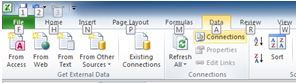
This includes the Quick Access Toolbar; commands saved here are accessed via shortcuts by using Alt + 1, Alt + 2 and so forth, depending on their arrangement, left to right across the QAT.


Comments